All sheets / Avery® 5197
Avery® 5197 label template — Address labels
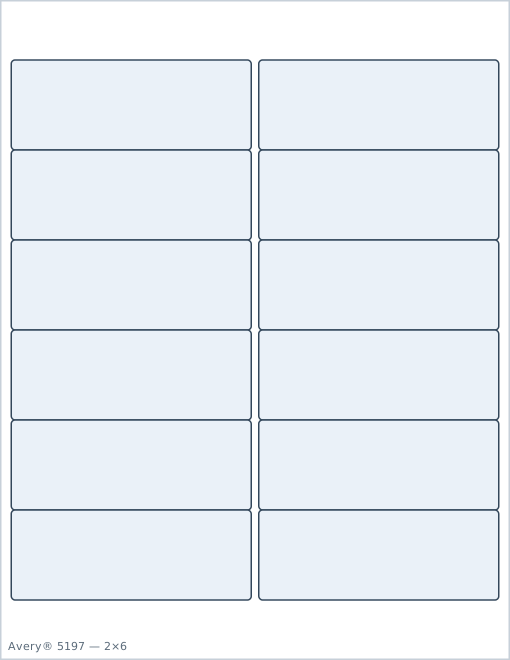
Each label is 4" × 1½" (101.6mm × 38.1mm), arranged 2 × 6 for 12 labels per sheet on a US Letter page. Paste your text below and download a PDF positioned to land exactly inside the die-cut labels on a sheet compatible with Avery® 5197.
Looking for a different number? See the full Avery label size chart.
Have a spreadsheet? Import a CSV or Excel file →
If your printer is slightly off, nudge the whole grid. Saved per sheet.
Print at 100% scale — make sure "Fit to page" is turned off, or the positions won't line up.
Sheet 5197 specs
- Label size
- 4" × 1½" (101.6mm × 38.1mm)
- Layout
- 2 columns × 6 rows
- Per sheet
- 12 labels
- Page size
- US Letter (8.5" × 11")
How many sheets do I need?
| Labels needed | Sheets of 5197 |
|---|---|
| 50 | 5 |
| 100 | 9 |
| 250 | 21 |
| 500 | 42 |
| 1000 | 84 |
Avery® 5197 template measurements
These are the exact positions the generator uses for 5197, measured from the edges of an 8.5" × 11" US Letter page. They are also the values Microsoft Word, LibreOffice, and Google Docs label add-ons ask for when you build a custom label template by hand.
| Top margin | 1" (25.4mm) |
|---|---|
| Bottom margin | 1" (25.4mm) |
| Left (side) margin | 0.188" (4.8mm) |
| Right margin | 0.188" (4.8mm) |
| Label width | 4" (101.6mm) |
| Label height | 1.5" (38.1mm) |
| Horizontal pitch | 4.125" (104.8mm) |
| Gap between columns | 0.125" (3.2mm) |
| Vertical pitch | 1.5" (38.1mm) |
| Gap between rows | 0" (0.0mm) |
| Number across × down | 2 × 6 |
| Safe text inset | 0.063" (1.6mm) |
How to print on Avery® 5197 sheets
- Type or paste your text into the generator above. Use one line per label for a list of names or addresses, or the same text on every label for return addresses and product stickers.
- Check the live preview. Text is kept at least 0.063" (1.6mm) inside each label edge, and auto-size shrinks long lines so they fit the 4" × 1½" label.
- Download the PDF and open it in any PDF viewer. Print at 100% / Actual size with "Fit to page" turned off, because any scaling shifts every label out of position.
- Print one test page on plain paper, lay it over a 5197 sheet, and hold both up to a light. If the text sits inside the die-cut outlines, load the label sheets and print the full run.
- Partly used sheet? Set "Start at label" to the first empty position (1 to 12, counted left to right, top to bottom) so the used labels are skipped.
Avery 5197 questions
What are the page margins for Avery® 5197 labels?+
On a US Letter page, the first 5197 label starts 1" (25.4mm) from the top edge and 0.188" (4.8mm) from the left edge. The last row ends 1" (25.4mm) above the bottom edge, and the last column ends 0.188" (4.8mm) from the right edge.
How many labels fit on one sheet of Avery® 5197?+
12 labels, laid out 2 columns by 6 rows. For 100 labels you need 9 sheets; for 500 you need 42.
Why is my Avery® 5197 printout misaligned?+
Almost always because the PDF was scaled. Print at 100% / "Actual size" with "Fit to page" or "Shrink oversized pages" turned off. Test on a plain sheet first, hold it against a 5197 sheet up to a light, and check that each text block sits inside a label with about 0.063" (1.6mm) of clearance.
Can I make an Avery® 5197 template in Microsoft Word instead?+
Yes — in Word's Label Options, choose New Label and enter a label width of 4" (101.6mm), height of 1.5" (38.1mm), top margin of 1" (25.4mm), side margin of 0.188" (4.8mm), horizontal pitch of 4.125" (104.8mm), vertical pitch of 1.5" (38.1mm), 2 across and 6 down. Or skip the setup and use the generator above, which already uses these numbers.